

This guide is intended for ISD Directors and explains how to complete the Annual Acknowledgement Process in Catamaran.
Access the Activity
- Log into Catamaran.
- Access the activity from the Dashboard. Scroll down to the Tasks Overview section. Use the filters, as needed, to narrow tasks and select the ISD Plan link in the Activity column to open the activity.

Review the ISD Plan
- ISD Directors can access the Annual Acknowledgement form using the Annual Acknowledgement Form found on the ISD Plan Menu.

- On the Annual Acknowledgement form, the ISD Director will review each section and indicate if any changes are needed for that section. Each section header is a clickable link for the ISD Director to see the full section of the ISD Plan.
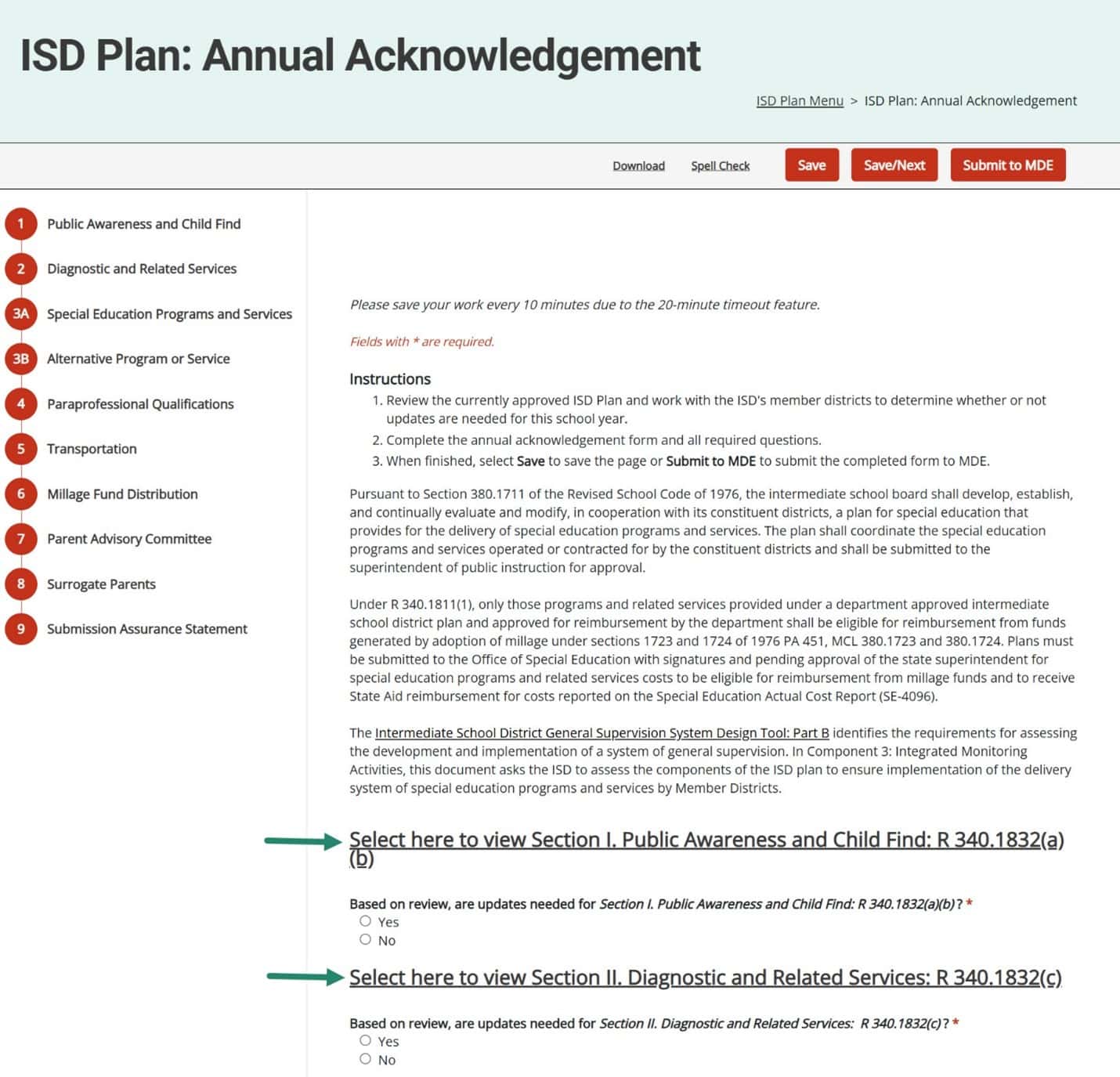
- For some questions, if Yes is selected to indicate updates are needed, another question will be displayed for the ISD Director to note potential modifications. Please check all that apply.

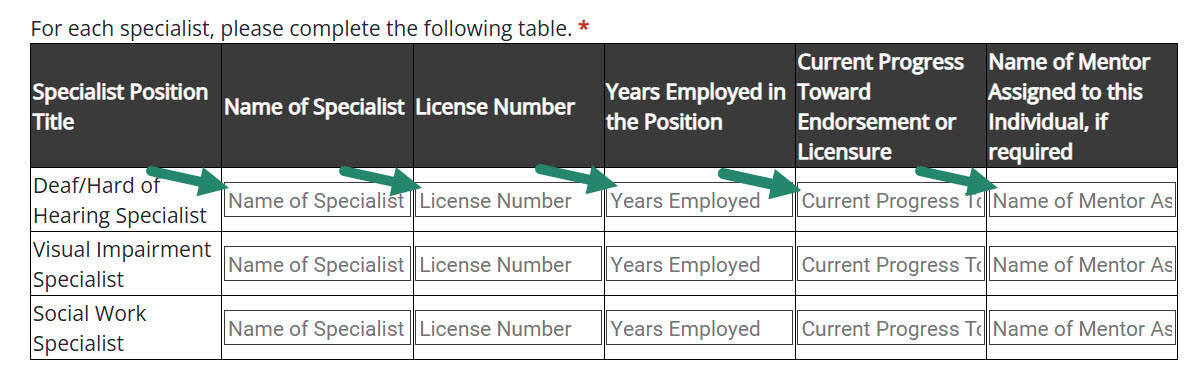
- For ISDs whose ISD Plan includes any specialists in Section III Special Education Programs and Services, there will be an additional table to complete. Provide the required information.
- Once all sections of the ISD Plan have been reviewed and potential modifications have been selected, Submit to MDE.

MDE Review
- MDE will review the form and select one of the following three options:
- If no modifications to the plan are needed, then MDE will return the plan to the ISD Plan Approved status and no further work is required.
- If modifications are needed that include updates to the district list, then MDE will change the status to ISD Review District List. Proceed to step 9, ISD Review District List.
- If modifications are needed that do not include updates to the district list, then MDE will change the status to ISD Plan Review in Progress. Proceed to step 13, ISD Plan Review in Progress.
ISD Review District List
ISD Directors can review the district list from the ISD Plan Menu.
- Select the District List link on the ISD Plan Menu.

- Select Populate District List to populate all open and active districts within the ISD according to the Educational Entity Master (EEM).
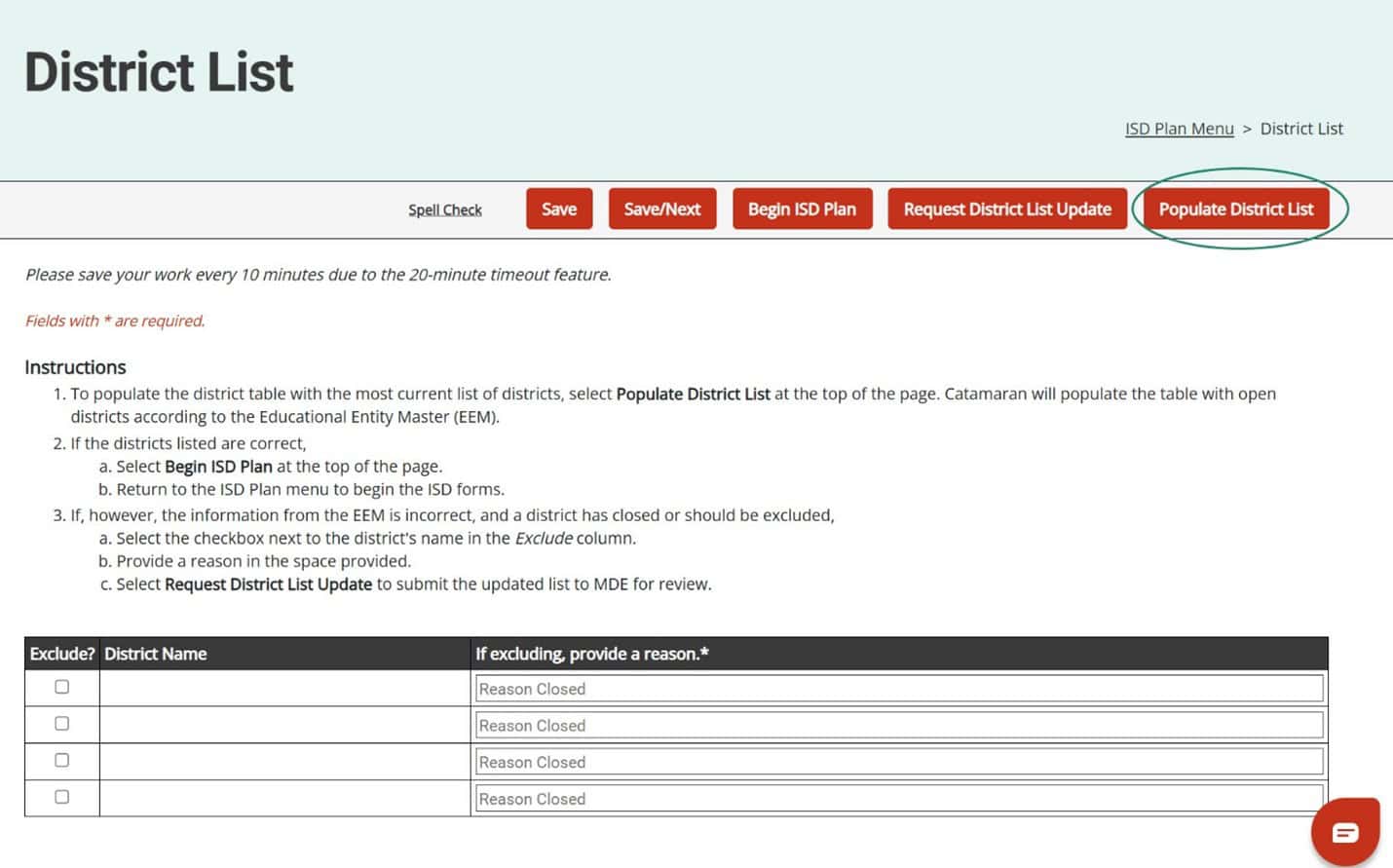
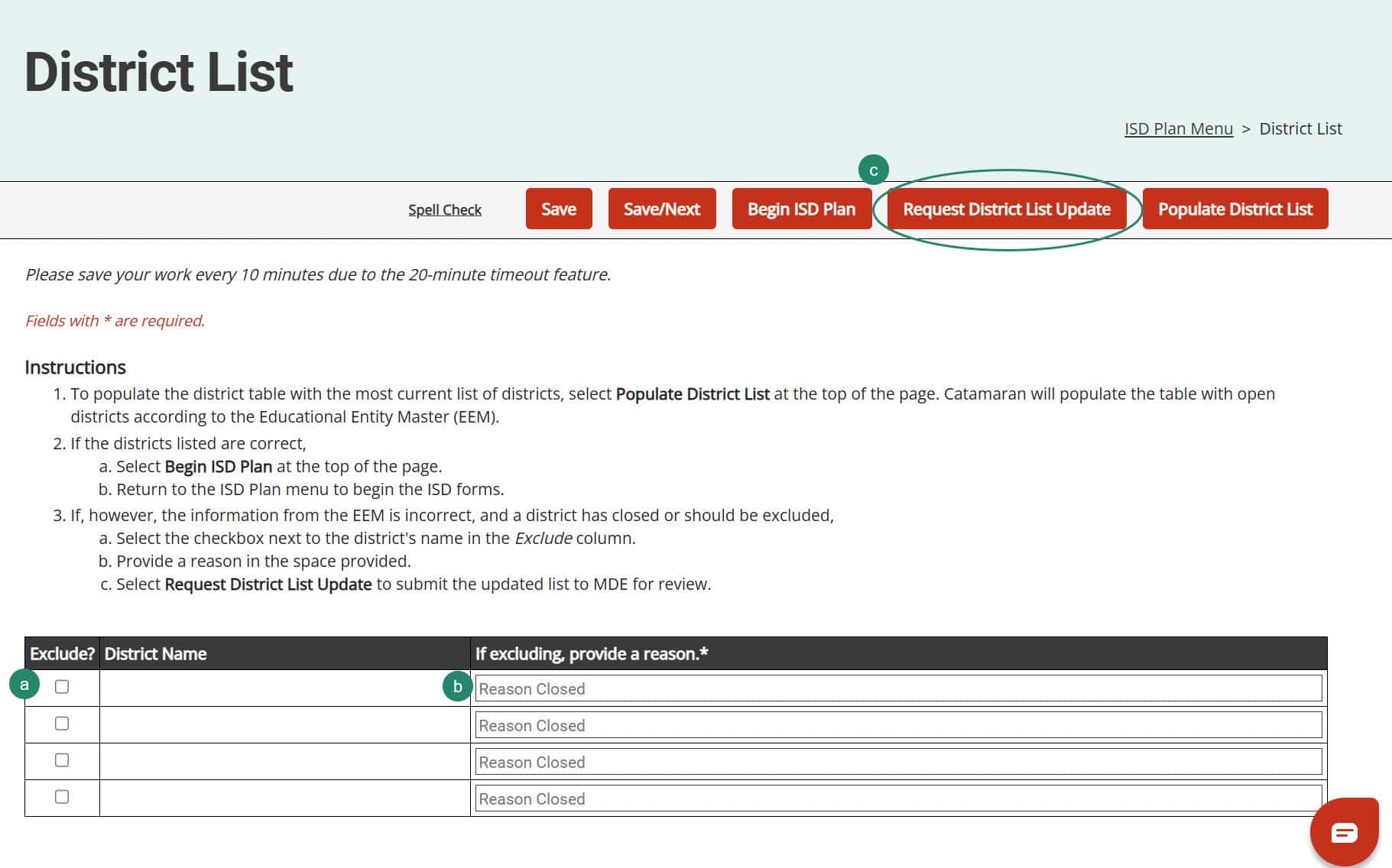
- After populating the list, if there is a district included that is closed or has moved to another ISD:
A. Select the box in the Exclude?
B. Provide a reason to exclude the district.
C. Select Request District List Update to return the ISD Plan to MDE.
- MDE will review the request and will return the ISD Plan for further modifications of the plan.
ISD Plan Review in Progress
The ISD Director can edit the information on the ISD Plan forms for the ISD as well as all the ISD’s member districts.
- Access the ISD Plan (District) in the Activity column of the Tasks Overview.

- On the ISD Plan for District Menu, select ISD Plan.
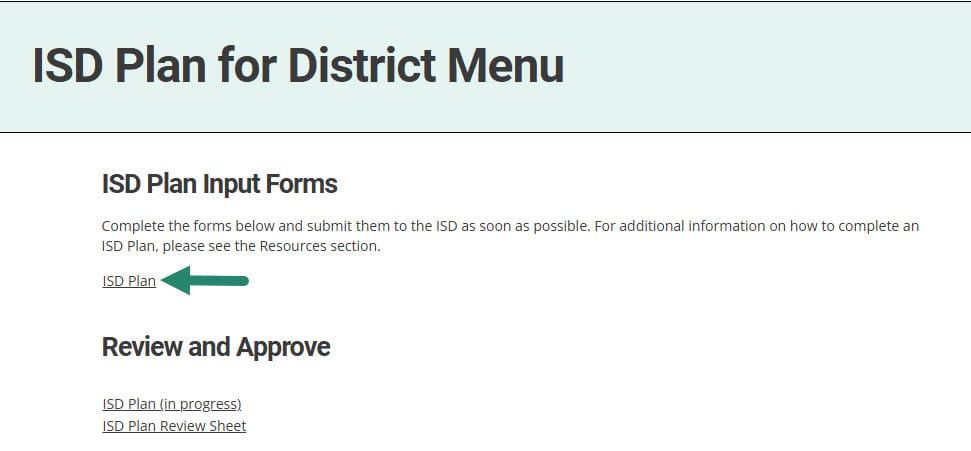
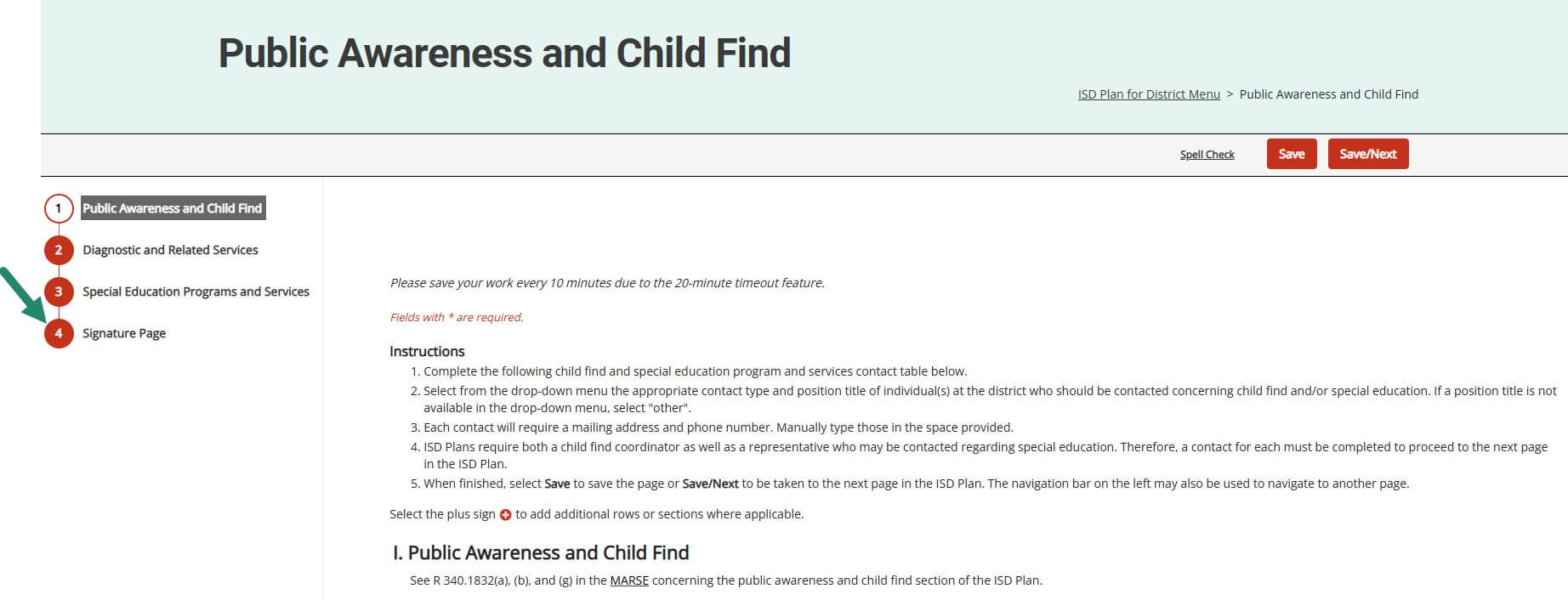
- Using the left navigation links, access the necessary forms to make the changes as listed in the Annual Acknowledgement form and save the forms.
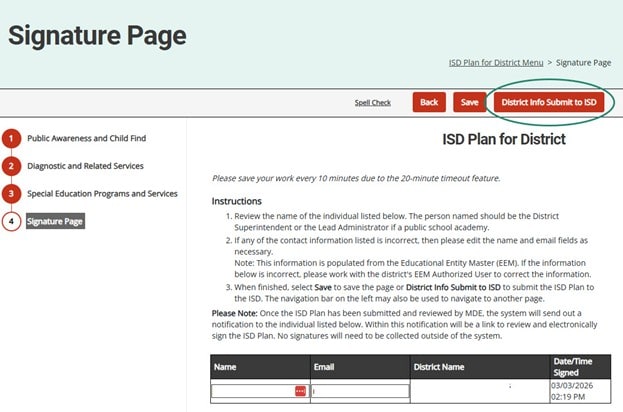
- Once all requested edits have been made for a district, access the Signature Page from the left navigation list.
- Submit the form to the ISD by selecting District Info Submit to ISD.
- Repeat steps 13-17 for each district. Each ISD Plan (District) must be submitted to the ISD for review.
- When all district pages have been submitted to the ISD, access the ISD Plan from the Tasks Overview. Select the ISD Plan Member District Review Tool from the ISD Plan Menu.

- On the Member District Review Tool, use the Review Submission link to access each district’s plan.

- On the Member District Review Page, the ISD can review the information included on all pages of a district’s plan.
- When revisions are needed, select Return for Revisions and return to step 13.

- When the information is correct, select Accept District Info.

- When the information is correct, select Accept District Info.
Submit the ISD Plan to MDE
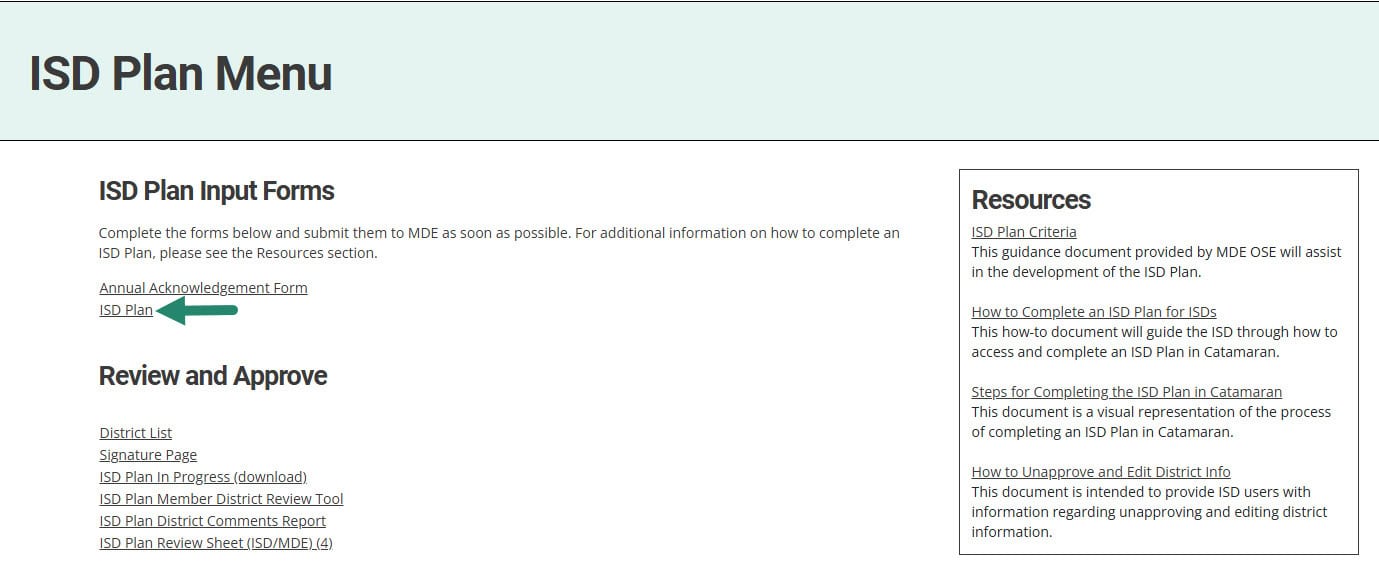
- Return to the ISD Plan Menu and select ISD Plan.
- Using the left navigation, select Submission Assurance Statement.
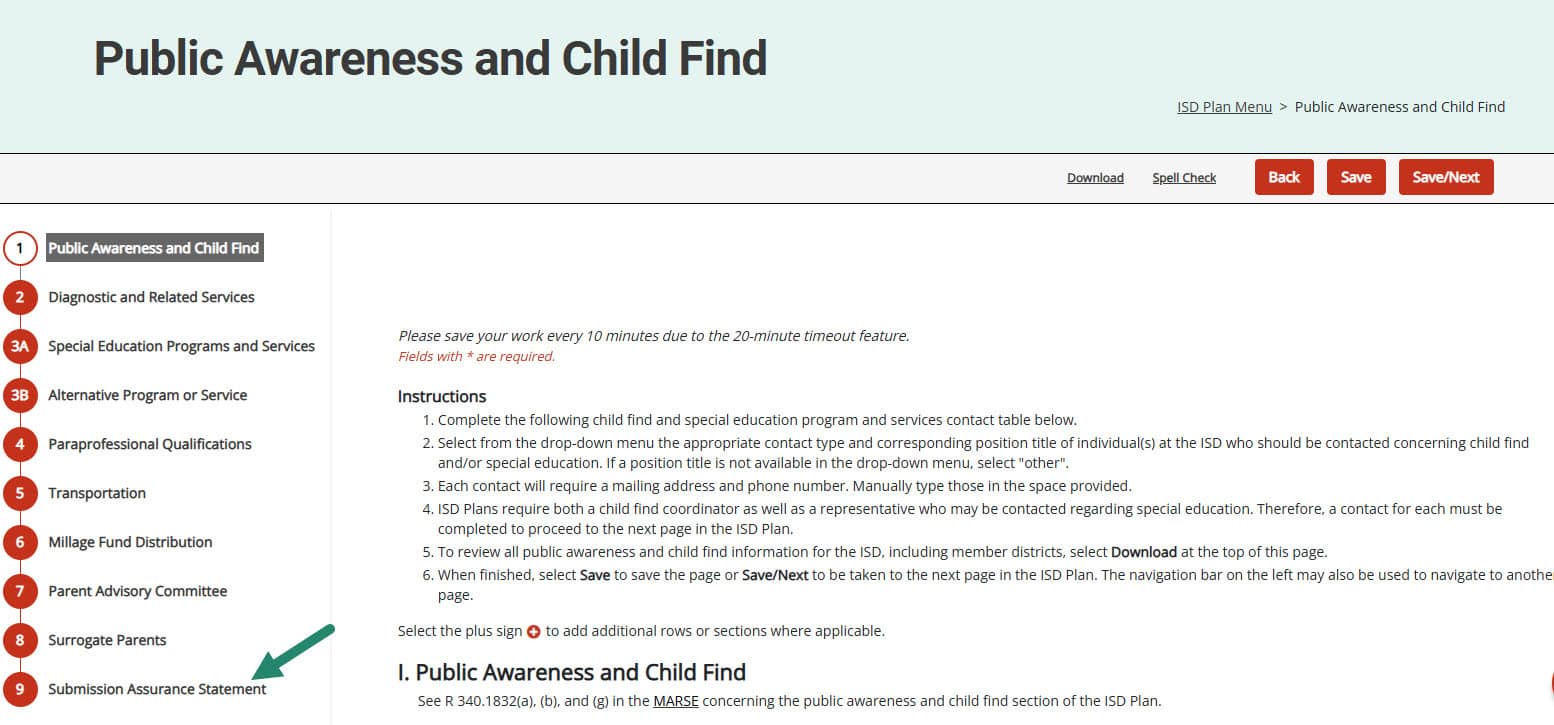
- On the Submission Assurance Statement form, review the statements then select Submit for MDE Review.

Need Additional Assistance?
For questions about system navigation or accessing this activity, contact the Catamaran Help Desk. The help desk is available Monday–Friday from 8:00am to 5:00pm. Contact by email (help@catamaran.partners), phone (877-474-9023) or by using the Chat feature within Catamaran.