
This resource is intended for intermediate school districts (ISDs) completing the B-11 (Child Find) and/or B-12 (Early Childhood Transition) Corrective Action activity. Users completing the B-13 (Secondary Transition) Corrective Action activity are encouraged to refer to the training resource, How to Complete the B-13 Corrective Action Activity.
Review the Corrective Action Letter of Findings
Before accessing and completing this activity, please review the ISD’s letter of findings located on the January B Reports page.
- On the Dashboard, select the Search link in the upper right-hand corner of the page. Using the search function, choose (1) Monitoring. Filter the search results by selecting (2) Reports, (3) B Report – January, then (4) Search to access the (5) January B Reports page.

- From the B-Reports page, if the ISD has a finding for B-11 or B-12, a link to the report will be available under the appropriate subheading.

Access the Activity
- Log in to Catamaran.
- Access the Corrective Action activity in either of these two ways:
- On the Dashboard, scroll down to the Tasks Overview section. Use the filters as needed, to narrow tasks, and select the link in the Activity column to open the activity.

-
- On the Dashboard, select the Search link in the upper right-hand corner of the page. Using the search function, choose Monitoring. Filter the search results by selecting CAPs to access the activity.
Review the MDE Data Review Form
- On the Corrective Action Menu, select the Corrective Action MDE Data Review Form.

- On the Corrective Action MDE Data Review Form, review the following:
A. List of districts and data collection sources MDE used to determine which district(s) have subsequent noncompliance which requires an ISD student file review.
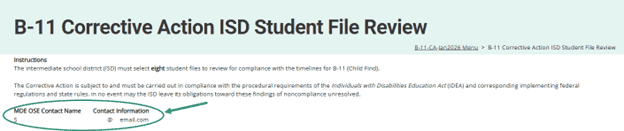
B. MDE OSE Contact Information.
C. ISD Clarification, this comment box will be open to the ISD to input clarification to MDE’s Comments at any time, even when MDE is still completing their data reviews.
D. If the ISD enters a comment, be sure to Save the page.

Note: To assist the ISD with the Corrective Action, MDE OSE has provided MDE OSE contact information available on the page. If questions arise, feel free to contact the MDE OSE contact for assistance.
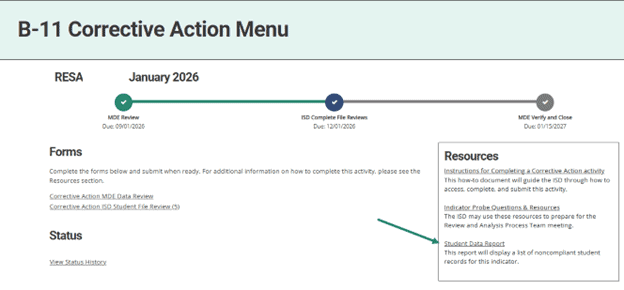
- Review the Student Data Report available on the ISD’s Corrective Action Menu.
Complete the Corrective Action Student File Review Form
After reviewing the MDE Data Review Form and the Student Data Report, review the instructions on the Corrective Action Student File Review form. ISDs will be asked to complete this form for each member district whose compliance cannot be verified with subsequent data collections.
- On the Corrective Action ISD Student File Review Form, enter the following:
A. Provide the ISD’s contact information.
B. Select eight student records from the identified member district in which activities related to the indicator occurred after the end-of-year 2026 data collection. After reviewing each record, upload the corresponding documentation for every student using the provided Browse button.
Note: Student UIC’s are 10-digits in length and may require one or more leading zeros.
C. If no student records are available for review, then the ISD should interview appropriate staff in the district to demonstrate their understanding of compliance with this indicator and document these interviews in the box provided.
D. If the ISD has more than one member district with noncompliance, then navigate to another district’s page by selecting the district’s name in the drop-down and selecting the Go button.
E. Once all evidence of student file reviews is uploaded for all noncompliant member districts, use the Submit to MDE button to submit the activity to MDE.
Note: Remember to Save the page frequently to avoid loss of data.

What's Next?
When compliance is verified for all member districts within the ISD, MDE OSE will close this Corrective Action and issue a closeout letter in the next year’s Catamaran release. If compliance cannot be verified, MDE OSE may return the Corrective Action for additional documentation or determine the corrective action is uncorrected noncompliance (UNC).
Need Additional Assistance?
- For questions about system navigation or accessing this activity, contact the Catamaran Help Desk. The help desk is available Monday–Friday from 8:00am to 5:00pm. Contact by email (help@catamaran.partners), phone (877-474-9023) or by using the Chat feature within Catamaran.
- For questions about this Corrective Action, contact the MDE OSE contact listed on the ISD’s Corrective Action Student Form.